Changing your Windows password regularly is important for security. Follow these simple steps to update your password on your Windows RDP.
Step 1: Open Windows Settings
-
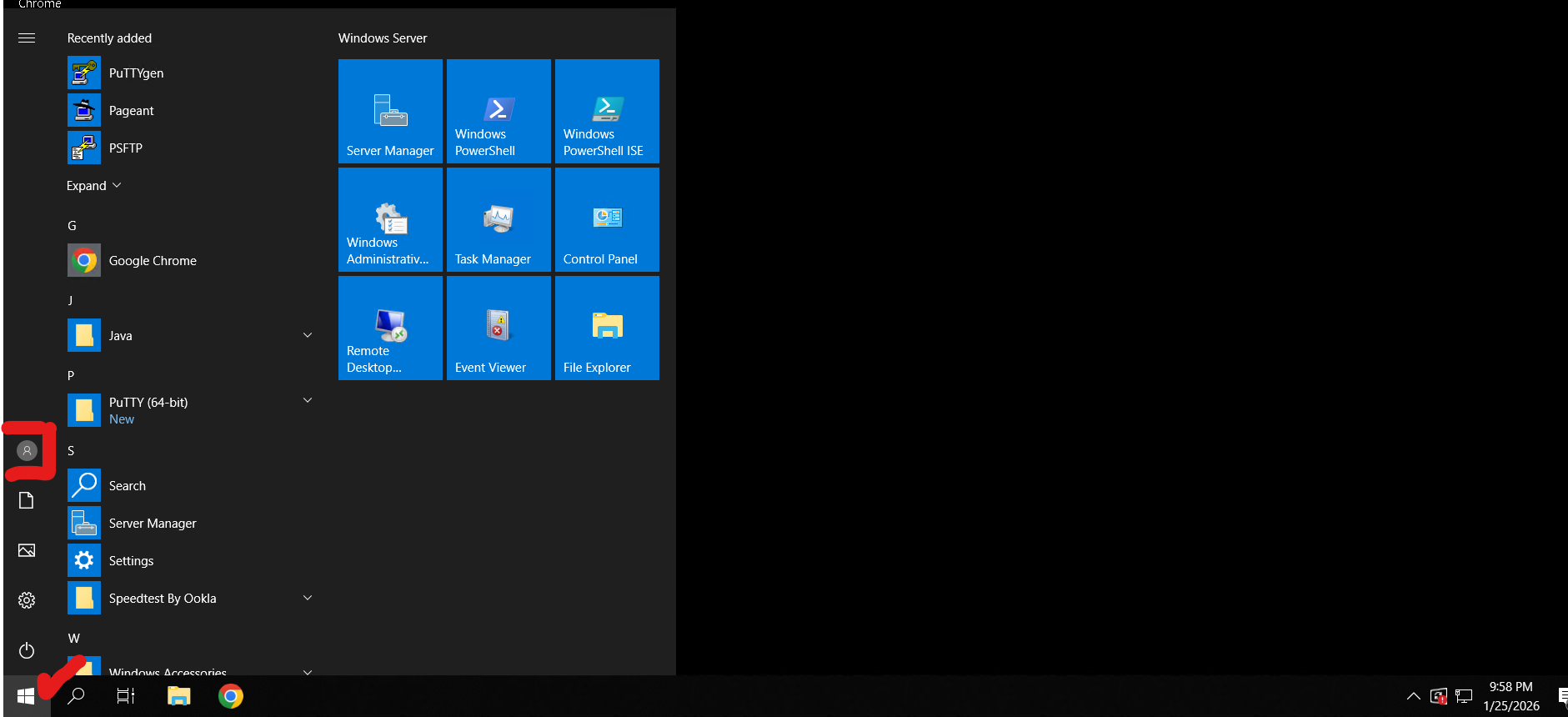
Click the Windows Start button (bottom-left corner).
-
Click on your user icon (profile picture or account name).
Step 2: Access Account Settings
-
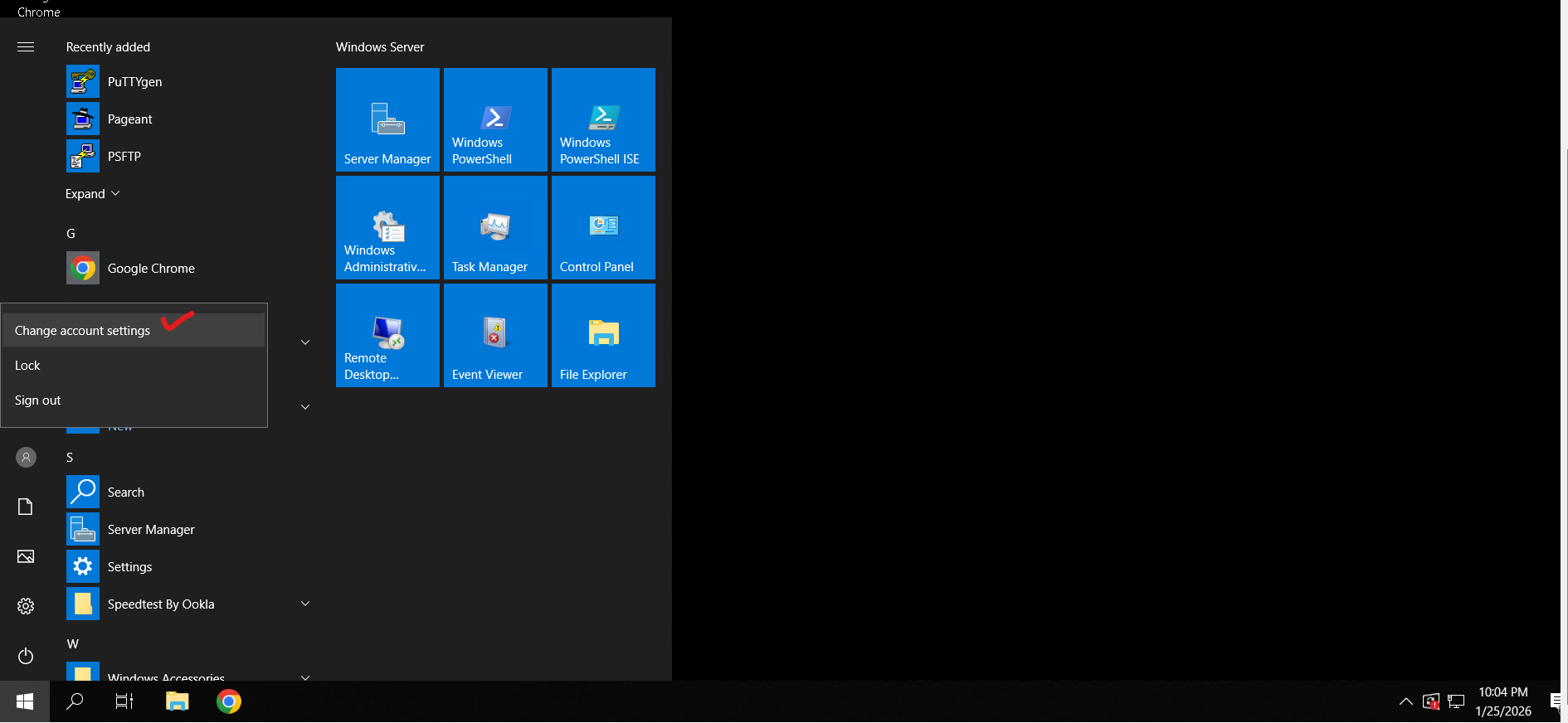
Select “Change account settings” from the menu.
-
The Settings window will open.
Step 3: Open Sign-In Options
-
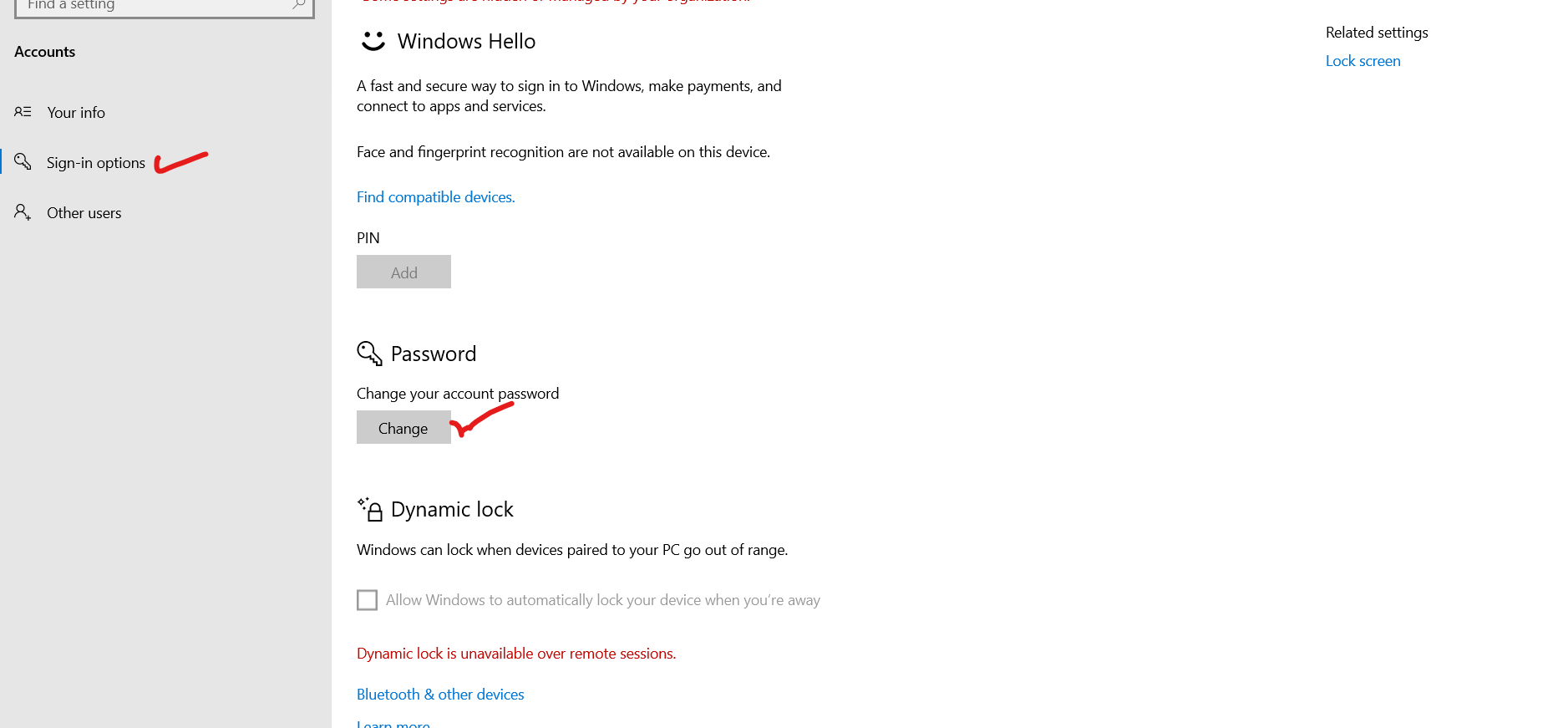
On the left menu, click “Sign-in options”.
-
This section contains options to change your password, PIN, and other sign-in methods.
Step 4: Change Your Password
-
Under Password, click “Change”.
-
Enter your current password when prompted.
-
Enter your new password and confirm it.
-
Click Next or Finish to save changes.
Step 5: Done
Your password has now been updated. Use your new password the next time you log in to your Windows RDP.